STEP 01
Select a screenshot, photo, or PDF
Open screenshots and photos from Photos or Files, or launch ShareWipe directly from the iOS Share Sheet.
Photos libraryFiles appiOS Share SheetCamera scan
Clean sensitive details from screenshots, photos, and PDFs before sharing. Supports document scanning, PDF merging, metadata cleaning, plus password, permissions, and watermark protection.
ShareWipe scans screenshots, photos, scanned pages, and PDFs on device so you can hide sensitive information before sending.
Beyond screenshots and photos, ShareWipe also supports document scanning, PDF metadata cleaning, PDF encryption and permissions, and batch export.
Beyond cleaning PDF metadata, you can add passwords, permission controls, and watermarks before sending — then export a copy that's safer to share.
Review each detected item before export instead of covering everything at once.
Everything runs on device. Nothing leaves your phone unless you choose to share it.
STEP 01
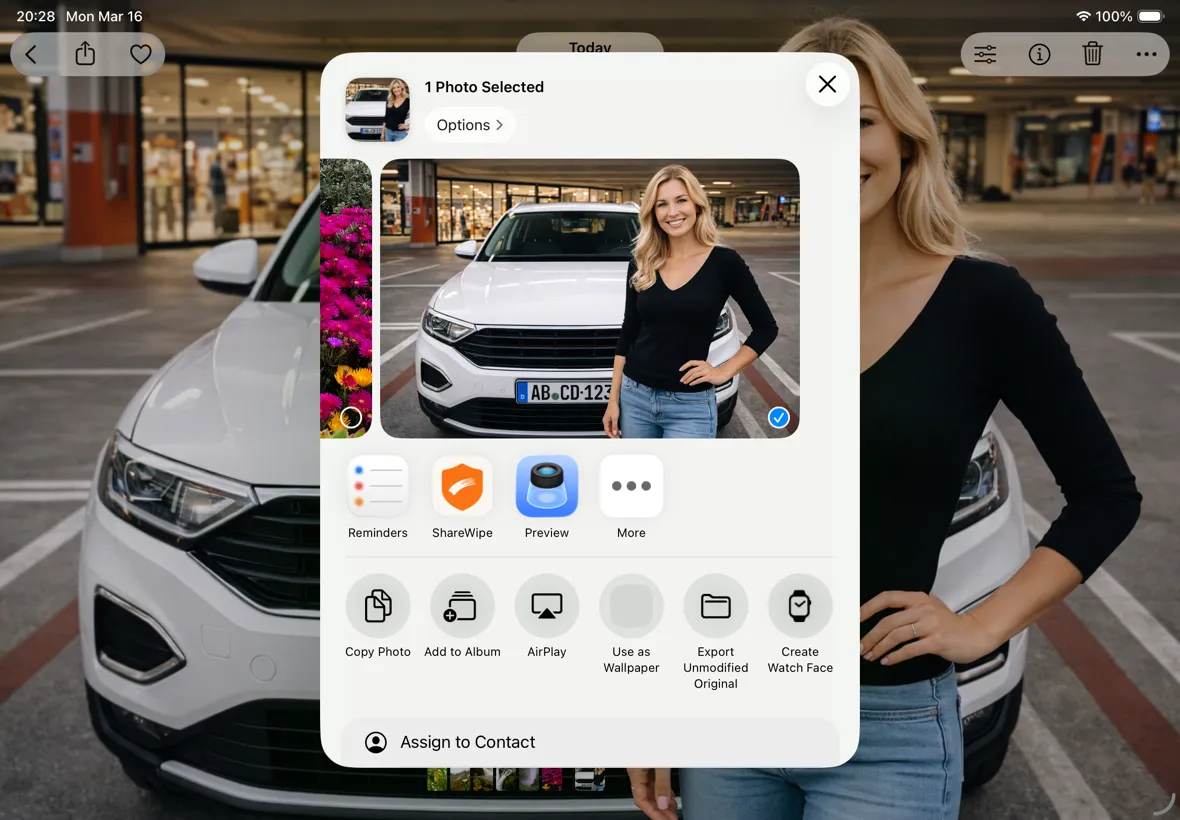
Open screenshots and photos from Photos or Files, or launch ShareWipe directly from the iOS Share Sheet.
STEP 02
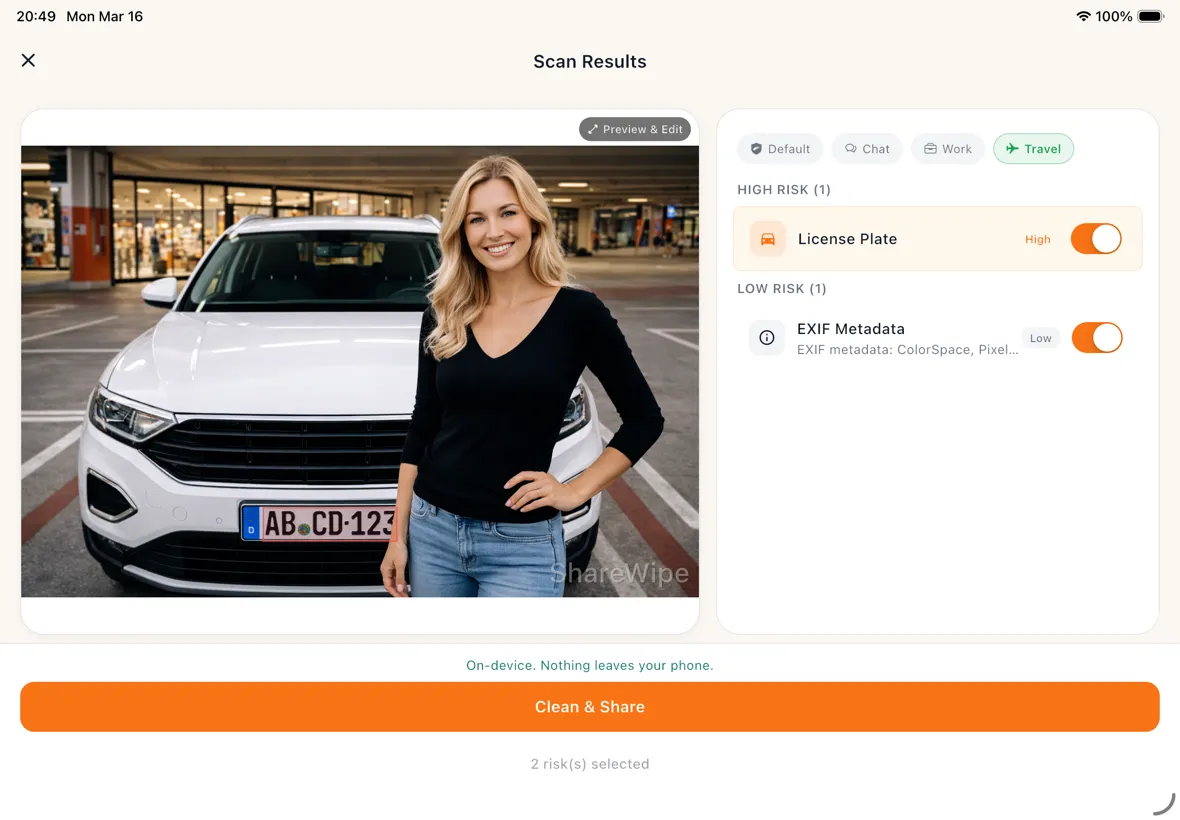
ShareWipe scans for faces, text, QR codes, addresses, plates, and metadata, then lets you review each result one by one.
STEP 03
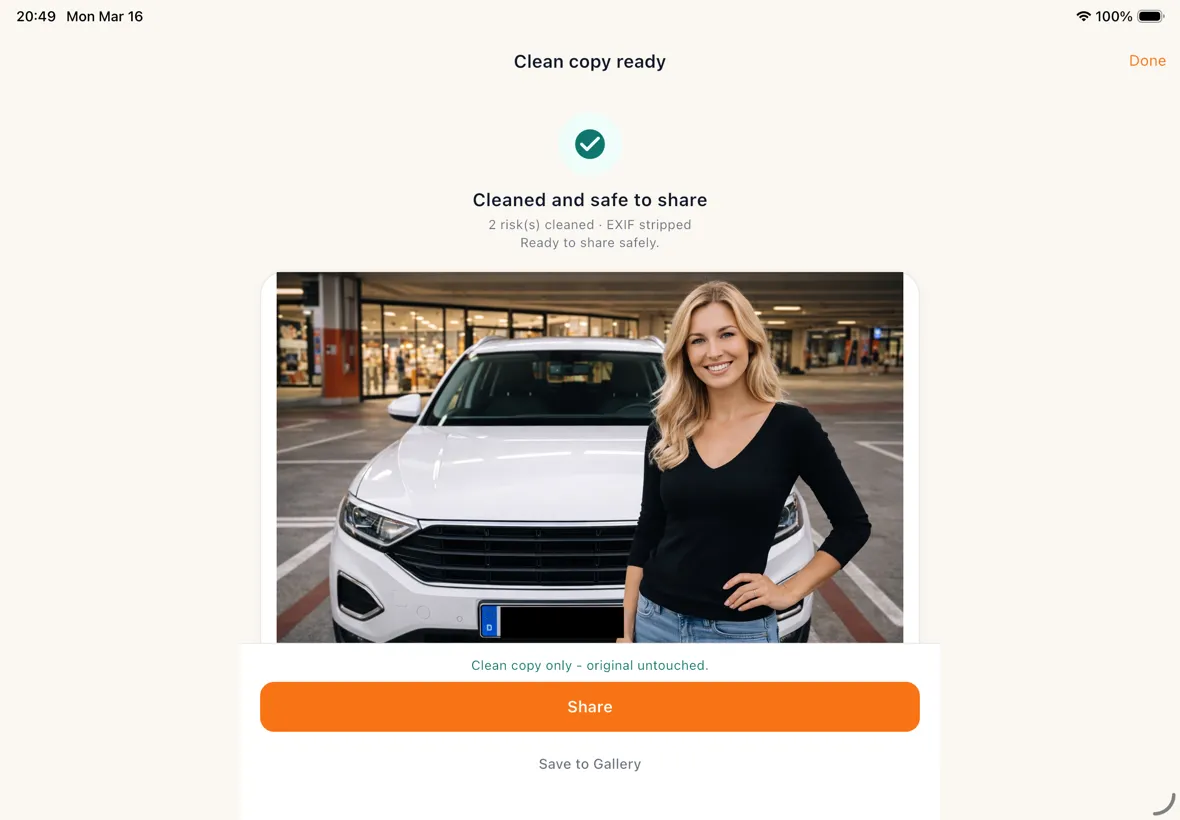
Apply blur or redaction, then export a safer image or PDF copy. Your original file always stays unchanged.
From chat screenshots to scanned contracts, ShareWipe helps you hide sensitive details before sharing.
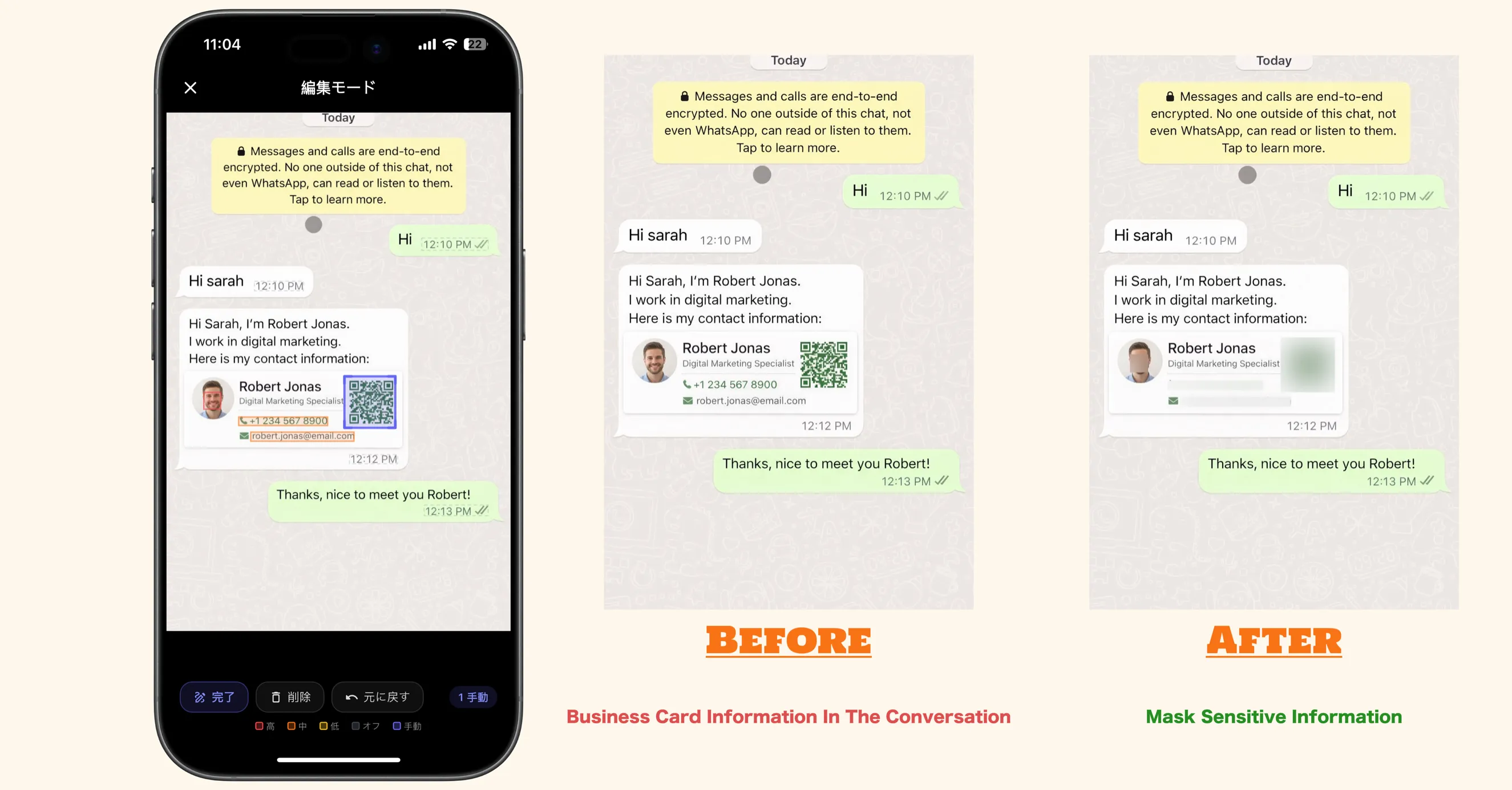
Share chats without exposing personal details
Redact chat screenshots before sharing by hiding names, avatars, phone numbers, QR codes, and message text.
Redact chat screenshots before sharing by hiding names, avatars, phone numbers, QR codes, and message text.
Redact screenshots, scanned pages, and PDFs before sending work documents to clients, teammates, or partners.
Hide names, addresses, phone numbers, and tracking details in order screenshots before forwarding or posting.
Blur faces and license plates, and remove GPS metadata from travel photos before posting online.
Scan contracts and forms to PDF, redact personal details, and export a cleaner PDF before sharing.
Blur selected faces in group and event photos before posting to social media or sharing in chat groups.
Things you may want to confirm before getting started
Yes. ShareWipe helps you redact screenshots on iPhone by detecting text, faces, QR codes, phone numbers, addresses, and other sensitive details before you share.
Yes. ShareWipe can detect text in screenshots and lets you blur or redact only the parts you want to hide.
Yes. ShareWipe can detect faces in photos and helps you blur them before posting, forwarding, or saving.
Yes. ShareWipe can remove EXIF and GPS metadata, including location and device details, before you share a photo.
Yes. You can scan paper documents, auto-crop and straighten pages, review them, and export them as PDF on iPhone.
Yes. ShareWipe lets you combine scanned pages or cleaned images into one PDF for easier sharing and delivery.
Yes. ShareWipe helps you clean PDFs before sharing, including removing metadata and exporting a safer PDF copy.
No. ShareWipe always exports a new cleaned copy. Your original screenshot, photo, or PDF stays unchanged.
Open the screenshot in ShareWipe from Photos or the iOS share sheet. It detects text, faces, QR codes, and more so you can blur or redact only what you need, then export a safe copy.
ShareWipe can strip EXIF and GPS metadata from photos before you share, so location and device details are not embedded in the file you send.
Yes. You can combine cleaned images or scanned pages into a single PDF in ShareWipe for easier sharing and delivery.
Open the PDF in ShareWipe, review detected sensitive areas and metadata, remove or redact what you need, then export a cleaner PDF copy. Your original stays unchanged.
Yes. Detection is item-by-item, so you can keep the readable parts and only hide sensitive regions before exporting.

Download ShareWipe and add one more layer of privacy before sending screenshots, photos, and documents.